Agile Task Management
When a business relies on verbal instructions or scattered emails, important tasks get forgotten, and deadlines are missed. UniTrack brings order to your daily operations through visual Kanban boards organized by department. This guide walks you through setting up your first project and managing daily assignments seamlessly.
1. The Board List Dashboard
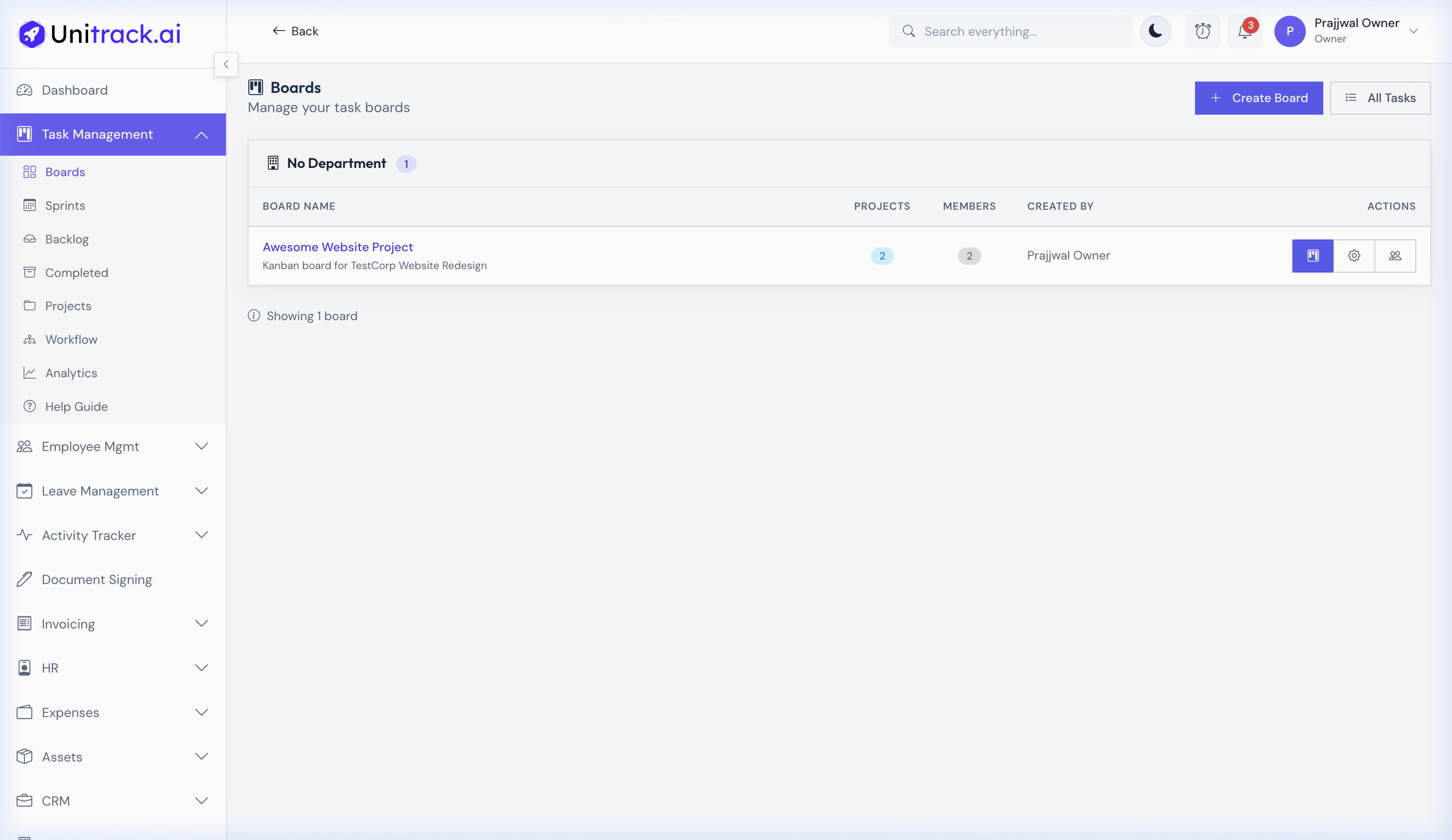
Your high-level view of all departmental projects and workspaces.
- 1Departmental Organization
At the top level, tasks are organized into Projects/Boards, which are grouped by Department (e.g., Development, Marketing). This keeps work siloed appropriately so teams only see what's relevant to them.
- 2Quick Access
From the Board List, you can instantly see the number of active projects, tickets, and participating members. Administrators can use the gear icons to jump directly into Board Settings or Member Management.
2. The Kanban Board
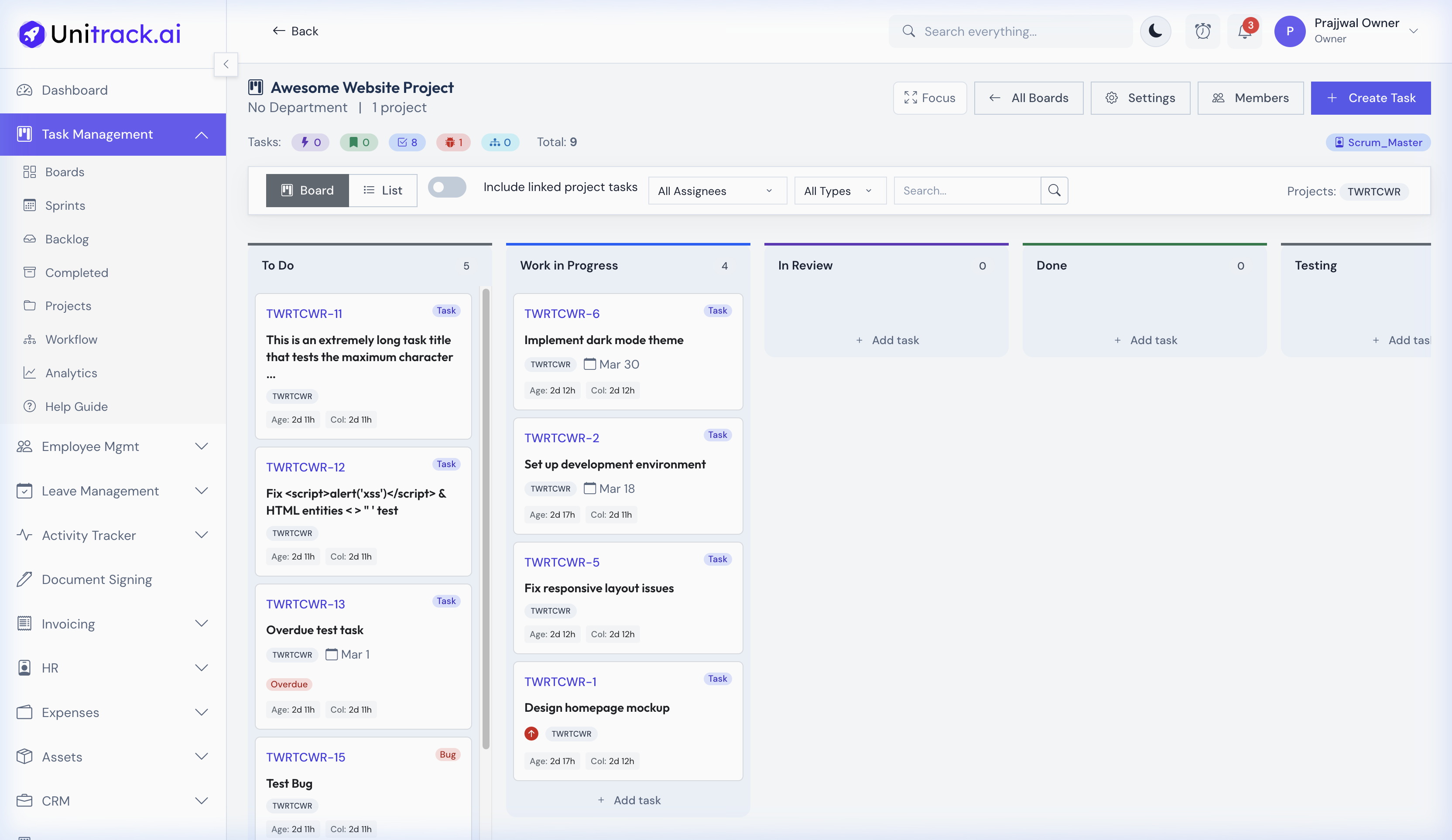
The interactive workspace where tasks flow from To-Do to Done.
- 1Workflow Columns
Clicking into any project reveals the Kanban view. The standard workflow includes customizable columns such as To Do, Work in Progress, In Review, Testing, and Done. You can drag and drop tasks between these columns to instantly update their status.
- 2Task Cards
Each individual task card provides crucial at-a-glance information: the Unique Task ID, Task Type (Bug, Epic, Task), the Title, the Assignee's avatar, Priority level, and how long the task has been open (age).
- 3Filtering & Context
Use the robust filter bar at the top to narrow down the board view. You can filter by Assignee (to see only your work), Task Type, or use the Global Search. The sidebar provides quick links to Sprints, Backlogs, and broader project settings.
3. Creating & Managing Tasks
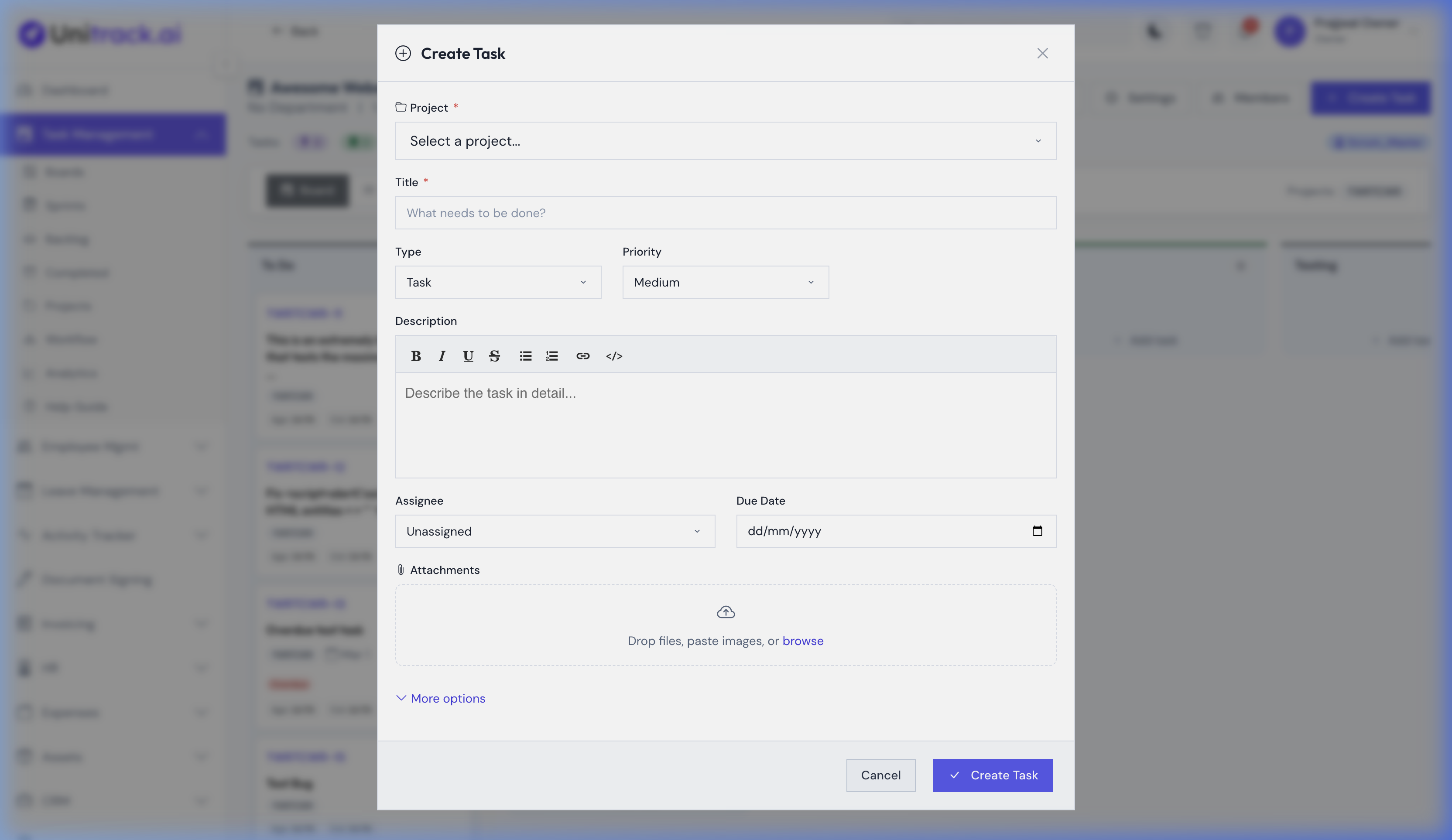
Capturing work accurately with detailed metadata.
- 1Initiating a Task
Click the Add Task button at the top of a column, or the global Create Task button, to open the comprehensive task creation modal.
- 2Mandatory Metadata
Every task must belong to a Project and have a Title. You classify the work by selecting a Task Type (Task, Bug, Epic) and assigning a Priority (Highest to Lowest).
- 3Rich Context
Use the Rich Text Editor to provide a detailed description of the work required. If you are logging a bug or tracking a design requirement, use the drag-and-drop zone at the bottom to attach screenshots, PDFs, or supplementary documents.