Knowledge Base & AI PDF Chat
Reading a 120-page employee handbook or analyzing a thick legal contract wastes hours. UniTrack's Knowledge Base provides a centralized document repository with an advanced AI chat system that lets you "talk" to your documents. Using RAG (Retrieval-Augmented Generation) technology, the AI reads documents in seconds and answers complex questions.
1. Document Management
Organize your company's documents in a centralized repository.
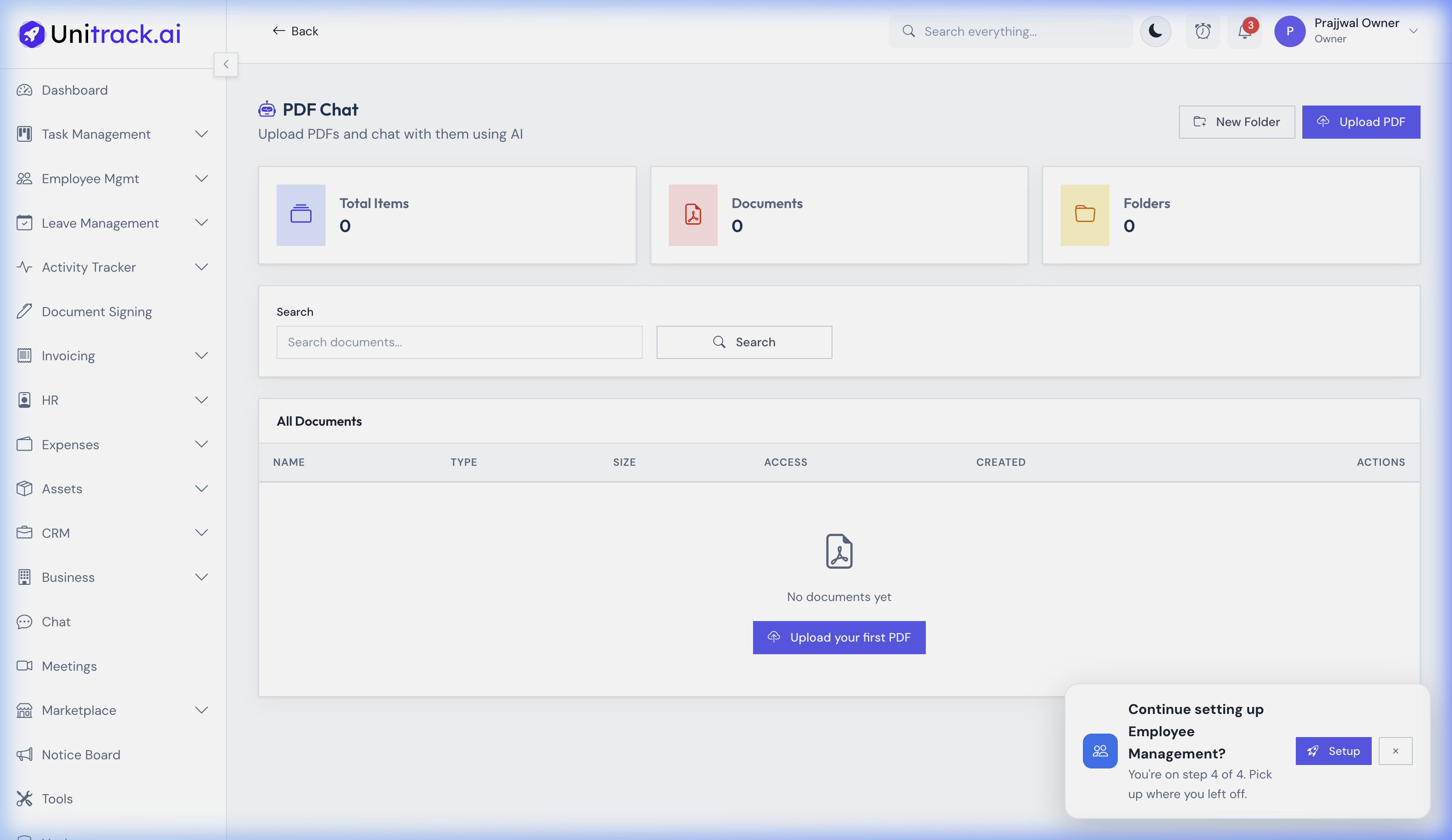
- 1The Knowledge Dashboard
Navigate to PDF Chat in the sidebar tools menu. The main dashboard displays a quick overview of your "Total Items," "Documents," and "Folders" for your personal and shared library.
- 2Create Folders & Search
Use the "New Folder" button to categorize documents (e.g., "HR Policies", "Legal Contracts"). If your list gets long, the built-in search bar allows you to quickly locate a specific file by name.
2. Uploading PDFs
Add new files and control who can see them.
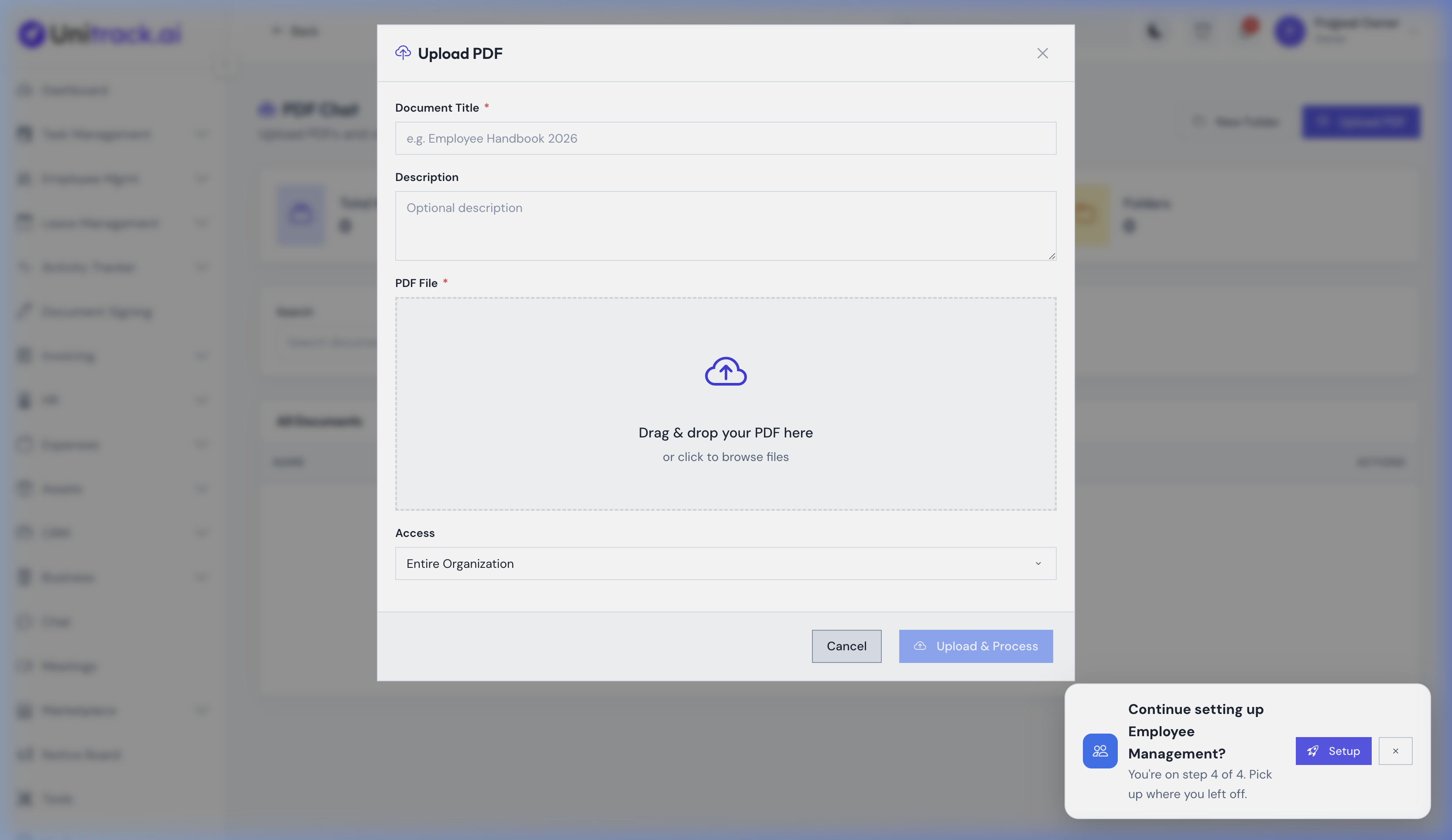
- 1Launch the Upload Modal
Click the Upload PDF button in the top right. A modal will appear where you can define the core properties of the document.
- 2Document Details & Access Level
Enter a descriptive Document Title and an optional Description. Critically, you can choose the permission scope: decide whether the document should be accessible to the Entire Organization or if it should remain restricted.
- 3Processing the File
Drag and drop your PDF file or click to select it from your computer. Once you click "Upload & Process," UniTrack extracts the text, generates vector embeddings, and prepares the document for the AI engine.
3. AI-Powered PDF Chat
Ask precise questions and get precise answers in real-time.
- 1Start a Chat Session
Once a document is processed, click on it to open the dedicated AI chat interface. You can interact with the document just like you would with ChatGPT, but the AI's knowledge is strictly bounded by the uploaded PDF.
- 2Multi-Turn Conversations
Example: Upload your "Company HR Policies.pdf" and ask: "What is the policy for extended maternity leave?" You can ask follow-up questions because the AI remembers the context of the conversation thread.
- 3Real-Time Answers
Responses stream back to you in real-time via Server-Sent Events (SSE). The AI is instructed to stay within the document scope to ensure high accuracy and reliability.
4. Use Cases
How this saves you hours every week.
- 1Reviewing Contracts
A vendor sends you a dense Master Service Agreement (MSA). Upload it and ask: "List all conditions under which this contract can be terminated without penalty."
- 2Onboarding New Hires
Instead of answering the same policy questions from every new hire, point them to the Knowledge Base where they can chat directly with the Employee Handbook.
- 3Analyzing Financial Statements
Upload a heavy annual report and ask: "What was the total expenditure classified under Marketing for Q3?"